Written by Casey Mok, Product Manager at Whisker
Is your Litter-Robot 5 Pro camera not working to identify your cats? There are simple things you can do to make PawPrint™ more accurate.
PawPrint™ is Whisker’s advanced cat identification system designed to recognize and monitor individual cats in multi-cat households. For better accuracy, it's important that your robot's camera has a clear view. Just like when you're taking photos on your phone, things like glare, shadows, and awkward angles can make it harder to get clear visuals.
The good news: most of these tips take only a minute. Here are six ways you can give PawPrint™ the best possible shot at accurately identifying your cat(s).
1. Skip the window view
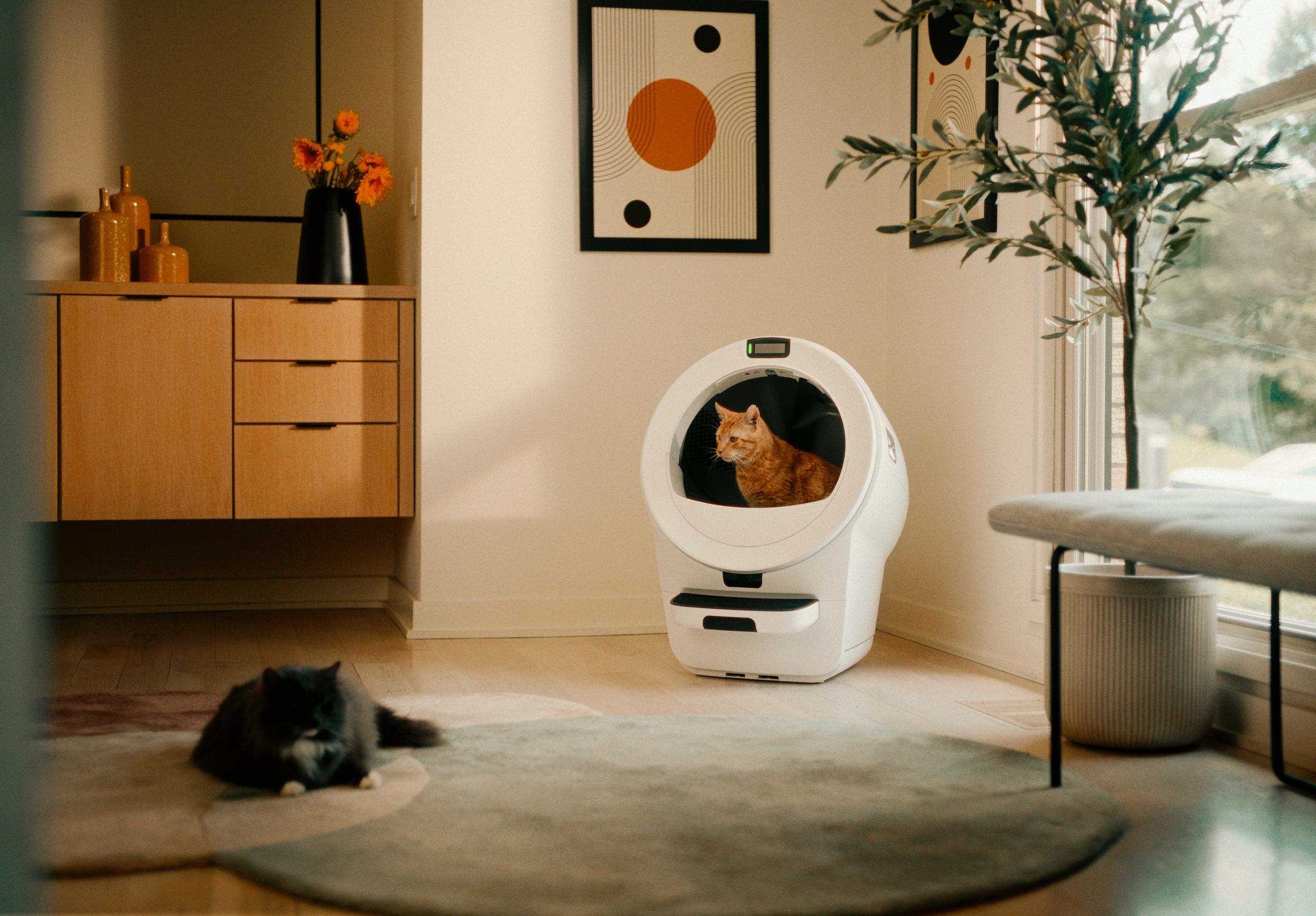
If your Litter-Robot® 5 Pro is facing a window, the camera may have trouble seeing your cat clearly. That’s because it automatically adjusts to the brightest part of your image (in this case, the window), which can leave your cat looking too dark for PawPrint™ to identify.
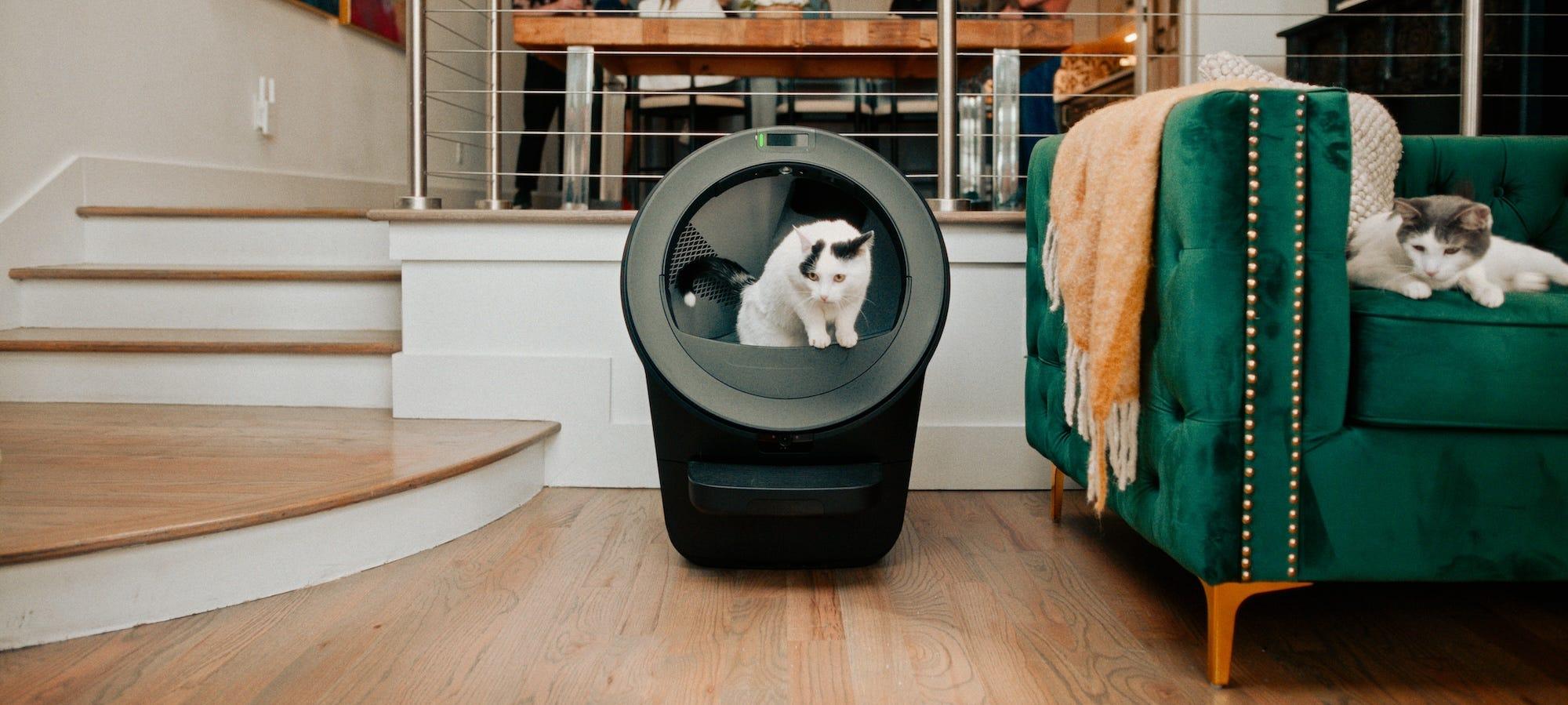
Fix: Point the camera away from windows and other strong light sources. Facing an interior wall or corner with 4-6 feet of open space in front of the robot gives the camera a much more even, consistent backdrop to work with and gives your cat easy access.
2. Don't leave the room pitch black
Even though your Litter-Robot 5 Pro camera has night vision, it works best with some light. Night vision images are not the best for identifying your cat(s).
Fix: A dim light source in the room, like a wall sconce, a small lamp, or indirect light from a window, can go a long way. Just don't overdo it. Lights that are too bright can create shadows or trick the night vision into turning off, making it harder for PawPrint™ to identify your cat. Similar to the situation in #1 above, if the robot is placed in a darker room, don’t face it toward a bright doorway.
3. Watch for heavy shadows
A little shadow here and there isn't a dealbreaker. It only becomes a problem if your cat spends most of their time in front of the robot in a dark shadow.
Fix: If you notice your cat is consistently in a dark pocket of the robot’s videos, a small adjustment to the robot's position or angle can bring them into better light.
4. Give it room to breathe
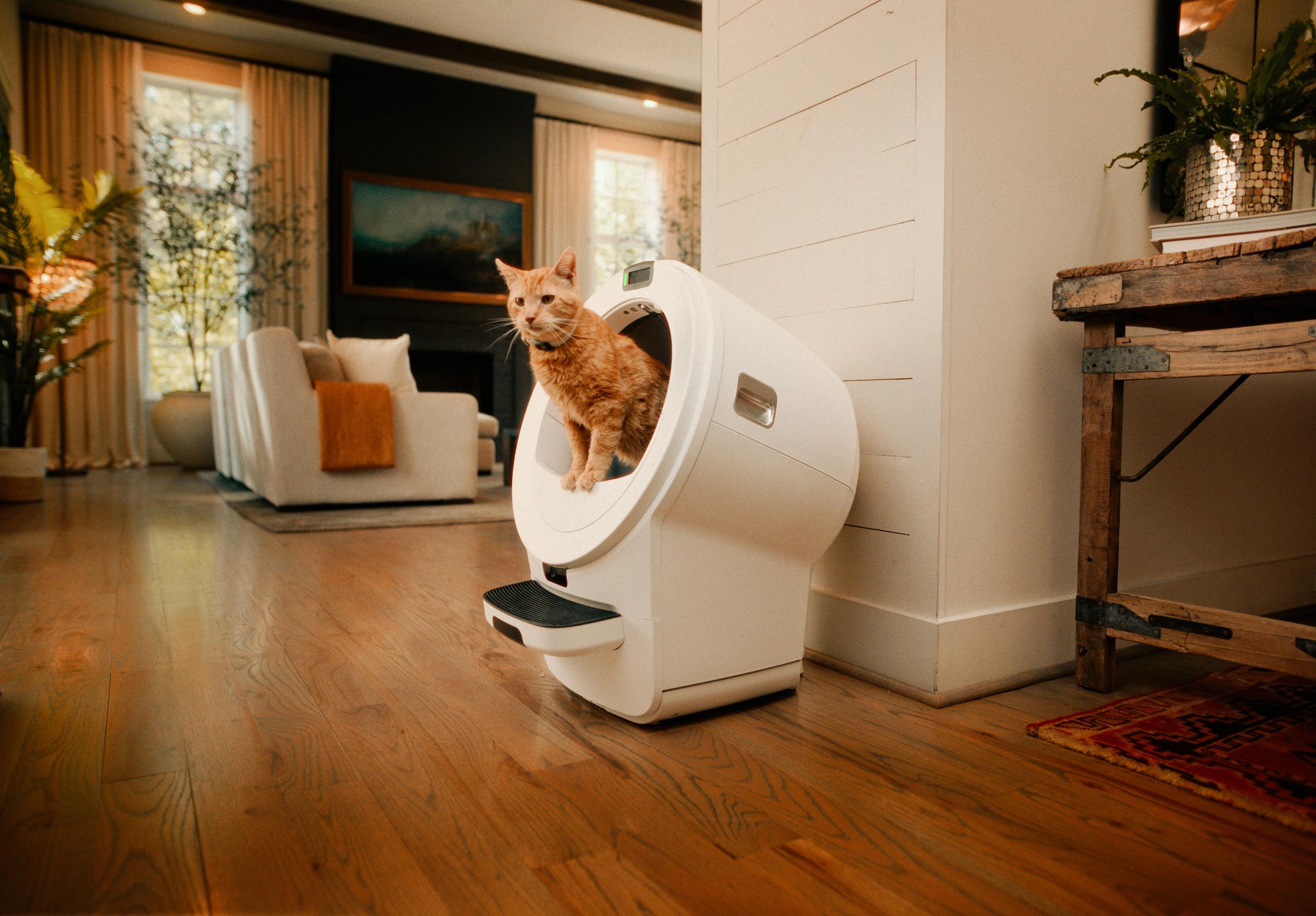
Placing your Litter-Robot® 5 Pro too close to a wall, couch, or other large object can make it harder for PawPrint™ to recognize your cat. It may prompt your cat to enter from the side instead of straight on, which gives the camera a less-than-ideal view.
Fix: Leave at least 4 to 6 feet of open space in front of the robot. Side-entry is one of the toughest angles for facial recognition, so the extra space may encourage your cat to enter the robot straight on.
5. Rethink what else is in the shot
PawPrint™ is looking for a cat, and it's not always picky about whether that cat is real. A photo of a cat close enough to the camera (on a wall, a litter bag, a bag of cat food) can occasionally register as a false detection.
Fix: Keep cat imagery out of the camera's direct line of sight where you can.
6. Check for reflections
Mirrors, glass cabinet doors, TV screens, and other reflective surfaces can reflect light into the robot’s camera in a way that confuses the system, especially if the sun hits those surfaces at the wrong angle throughout the day.
Fix: Take a look around the room from the camera's point of view. If there's a reflective surface directly in its line of sight, try angling the robot (or the object) slightly.
Do a quick footage check
The easiest way to catch most of these issues is to watch the recordings captured by your Litter-Robot 5 Pro, at a few different times throughout the day. Light changes a lot from morning to evening, so a spot that looks fine at noon might wash out at sunrise.
Try checking in:
- Shortly after sunrise
- Mid-morning
- Around midday
- Mid-afternoon
- Shortly before sunset
If something looks off at one of those times (glare, deep shadow, a washed-out image), that's usually your clue.
Still not getting reliable identifications?
If you've checked all of the above and PawPrint™ is still not working, reach out to Whisker Customer Experience. A quick screenshot of your camera view (and the time of day it was taken), and any other details will help determine what’s going on.